A lot of people have tried ChatGPT exactly once. They typed “write me a poem” or “what’s the meaning of life,” got back something that read like the inside of a greeting card, and closed the tab. If that was you, the disappointing version wasn’t your fault. Nobody handed you the next thing to type.
This is the next thing. Six prompts, in an order that builds, and one button click in the middle that fixes most of what people complain about. Sixty minutes from cold start. The hour starts now.

Open one of them. ChatGPT is fine.
Open chatgpt.com. You can start typing immediately without an account, but a free account is what unlocks file uploads, web search, and the settings we’ll need in a minute. Sign up when ChatGPT prompts you, which it will within the first few messages, and stay signed in for the rest of the hour.
If you’re already loyal to one of the others, here’s what’s different. Claude tends toward more careful, more deliberate answers and is the model most often described as calm to talk to. Gemini is bundled with your Google account and reads your Gmail and Drive when you ask it to, which some readers find useful and some find a bit much. Any of the three will do the things below. ChatGPT has the most installed base and the most help articles when you get stuck, which is why it’s the recommendation here.
Pick one, ideally ChatGPT, and stay there for the hour. Don’t tab-shop.
The model question, already answered
There’s a button at the top of the page that says “ChatGPT” with a small arrow. Click it.
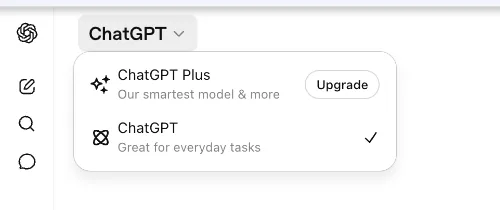
Two items. The one you’re using (“Great for everyday tasks”) and the one that costs money (“Plus”). No model names. No GPT-5 or GPT-5.5 or Auto. For a Free account in May 2026, this is the whole menu.
You don’t have to pick a model. ChatGPT picks one for you. For hour one, that’s correct. Close the dropdown. You won’t open it again today.
Three prompts that aren’t “write me a poem”
The first three prompts are warm-ups, and they’re meant to be unimpressive. The point is to end the hour with three small wins you can actually point at, not one party trick you can’t reproduce. Type them in order. Each takes under a minute.
A note for nervous readers, since you’re about to paste something real: ChatGPT keeps these conversations by default, and OpenAI can use them to train future models unless you turn that off. Click your name at the bottom-left, open Settings → Data Controls, and switch off Improve the model for everyone. Worth a minute now, before you do this in earnest.
The first one. Find the most recent email that confused you and paste it in.
Here's an email I just got. Explain in plain English what they're asking me to do, and flag anything that sounds unusual or worth checking.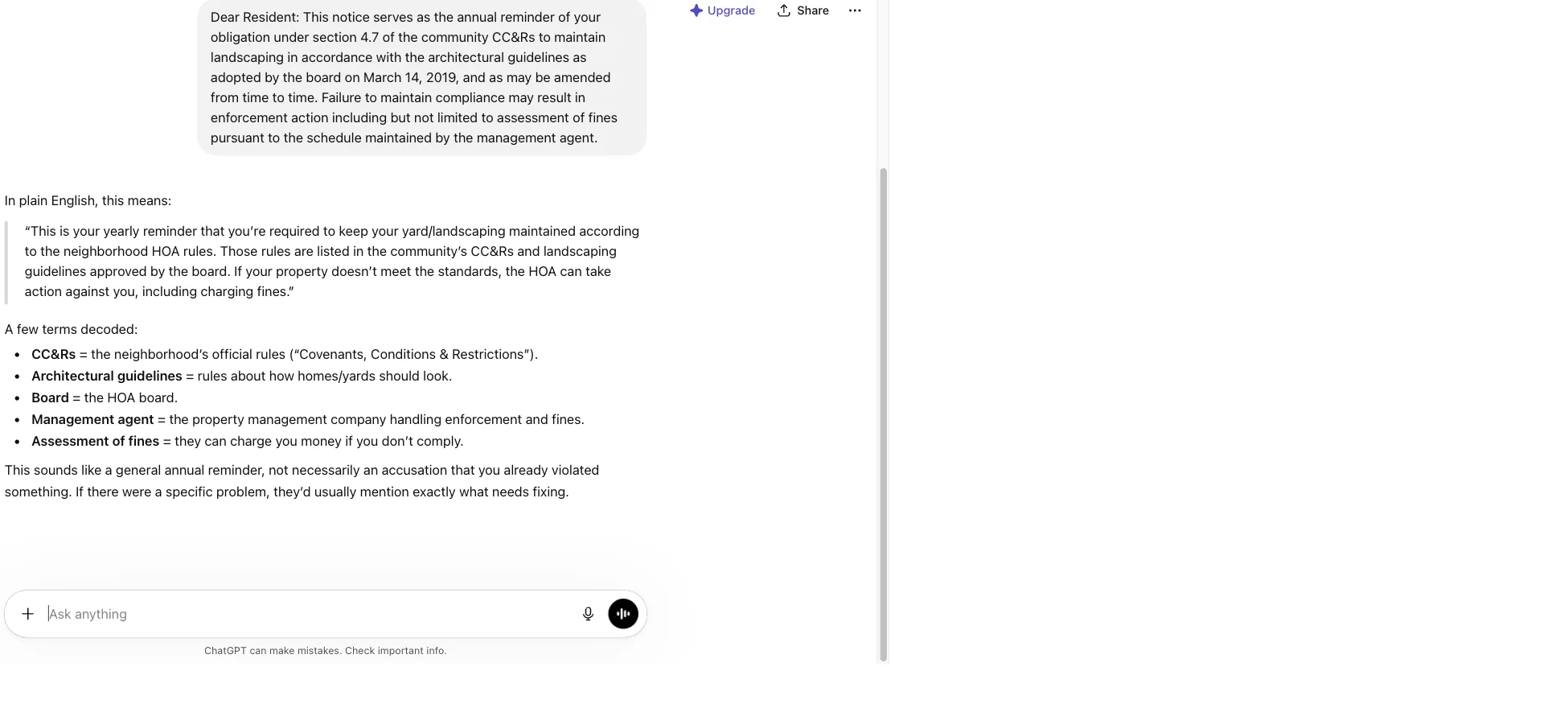
The win is small and visible. You now know what the email said. That is twenty seconds.
The second one. Open whatever invitation, request, or message you’ve been quietly avoiding, and try this.
Draft a polite reply saying no. Warm but clear, not apologetic, shorter than I'd write myself.You will get a draft. It will not be perfect. Keep going. “Make it shorter.” “Less formal.” “Take out the ‘unfortunately.’” The chat remembers what you said before, and adjusts. Treat the first response as a first draft, not a final answer.
The third one. Find a recipe you’ve been meaning to try, the kind with too many ingredients and steps that assume you read the whole thing first. Paste it in and ask this.
Turn this into a shopping list, and then a rough timeline I can follow if I'm cooking it tonight.You’ve now done three things that saved you effort. None of them are clever. All of them are real. The hour is approximately ten minutes in.
What the plus sign is actually for
There’s a + button on the left edge of the typing box. It is the most useful button on the page. Click it.
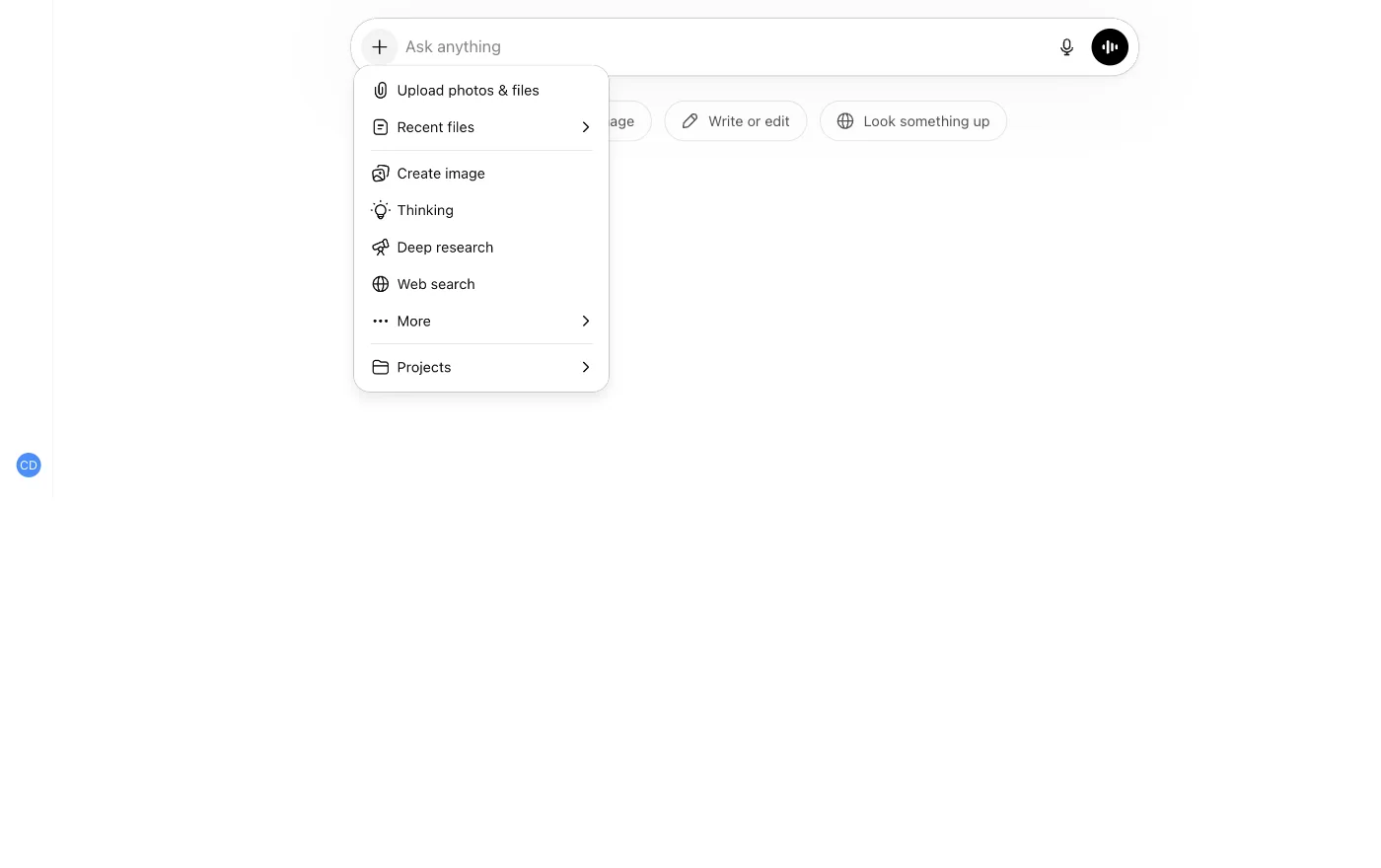
Eight items. Different names, same shape: each one is a way to give ChatGPT something specific to work with instead of asking it to remember things from training. Upload a photo. Attach a file. Turn on web search. Pick a tool that thinks longer.
The plain-English version of all of this is show your work. If the question is about a specific document, attach the document. If the question is about something current, turn on web search. If the question is about a thing in the room, upload a photo of it.
This is the habit. One button, eight options, one underlying move. A whole class of complaints about AI (“it made something up about my document,” “it didn’t know about a new policy,” “it confused two products I named”) gets a lot smaller when you start clicking + before you type.
The same three prompts. Click first this time.
Now repeat the warm-up shape with the + button doing the heavy lifting.
Start with something around you. Find a confusing object: a medication label in eight-point type, a dial on the dryer nobody ever explained, a plant that has started doing something strange. Click +, pick Upload photos & files, and add a photo.
What am I looking at? If it's something I should be cautious about, say so.Mostly a phone move, since the camera is right there. On a laptop, drag the photo in or grab your phone for this step.
Then go to a document you’ve been avoiding: an insurance summary, a contract clause, a school PDF, a piece of HR paperwork. Click +, pick Upload photos & files again, drop the file in.
Read this and tell me what it actually says in plain English. Then tell me anything I should ask a question about.You’re now doing what one of the most-followed AI writers has been telling people to do since February: bring your own documents.
Then take a question that needs current information: a long article you didn’t finish, a news item you saw a headline about, anything where the answer depends on something recent. Click + and pick Web search, then paste the URL or describe what you want.
Summarize this article in five bullet points, then tell me the one thing in it I might disagree with.ChatGPT often searches the web on its own when a question is obviously current, but clicking it manually teaches you where the toggle lives for the cases when it doesn’t.
You might notice ChatGPT showing two responses side by side and asking which one you prefer. That’s real and normal. ChatGPT is testing how to answer you; either pick is fine.
The hour is somewhere around thirty minutes in. You have done six real things. You have learned one habit.
What won’t work yet
Three honest cases where hour one is the wrong tool.
Math that has to be exact. ChatGPT can reason about numbers and still drop a sign on a multi-step calculation. Use a calculator alongside it; have it explain the math, not perform it.
Time-sensitive questions without Web search on. ChatGPT sometimes searches the web on its own, but not always. If “right now” matters (stock prices, scores, today’s news, what just happened), click + and turn on Web search first.
Anything where the answer matters and you can’t check it. This is the hallucination case, the polite name for AI confidently making something up. (Yes, an AI-written article is now telling you to verify what AI tells you. The recursion is real; the advice still holds.) Real, named, and a lot less frequent when you use the + button habit on questions about specific things. The full mechanism story lives in Why AI Hallucinates. For hour one, the rule is short: if the answer matters, give it the source, or check the source it cites.
The honest objection
A smart cousin reading over your shoulder is about to say: “Isn’t telling a beginner ‘ChatGPT is good now’ just burying the lede? Their first instinct will be to type a question off the top of their head, and there’s a whole class of harder questions where it still gets things wrong.”
Yes, and that’s why the + button comes before anything fancy. The fix isn’t pretending the failure mode doesn’t exist. The fix is making “click the +” the reflex you walk away with. Hard ungrounded factual questions are still a thing; the + button is how you stop asking them.
Hour two starts with a document you already have
Ethan Mollick, a Wharton professor whose newsletter has been the steadiest AI writing in this space for years now, has been putting it this way since February: invite AI to everything you do. Start using it for real work. Upload a document you’re actually working on.
His older rule of thumb is ten hours of using AI on things you actually do for work or fun. Not a course. Not a tutorial. Not a week. Ten hours.
This hour was one of them. The other nine are the actual work, the actual documents, the actual emails. Open something you’ve already got, click +, and keep going.