A slash command is the fastest thing you can type into Claude Code, and most of the published writing about them assumes you’re shipping software. You aren’t. You’re reconciling a spreadsheet, vetting a source, turning a transcript into a first draft, pulling numbers out of forty PDFs. This is the reference written the other way around: every command described by what it does for knowledge work, not for a codebase. Two halves, the commands that ship with Claude Code and the ones you build yourself, and both jump links land you straight in the list.
Two things before the list. Claude’s desktop app has three surfaces you switch between with tabs at the top: Chat (the conversation you already know), Cowork (Claude doing multi-step work on your files while you step away), and Code (Claude Code itself). They share an engine, but slash commands live mostly in Code and show up only partly in Cowork; that difference is the last section. And this reference is current as of June 2026, on the Claude Code 2.1.x line. The command set changes most releases, so a couple of these entries will drift, and the ground truth is always what /help shows you in your own session.
Built-in commands
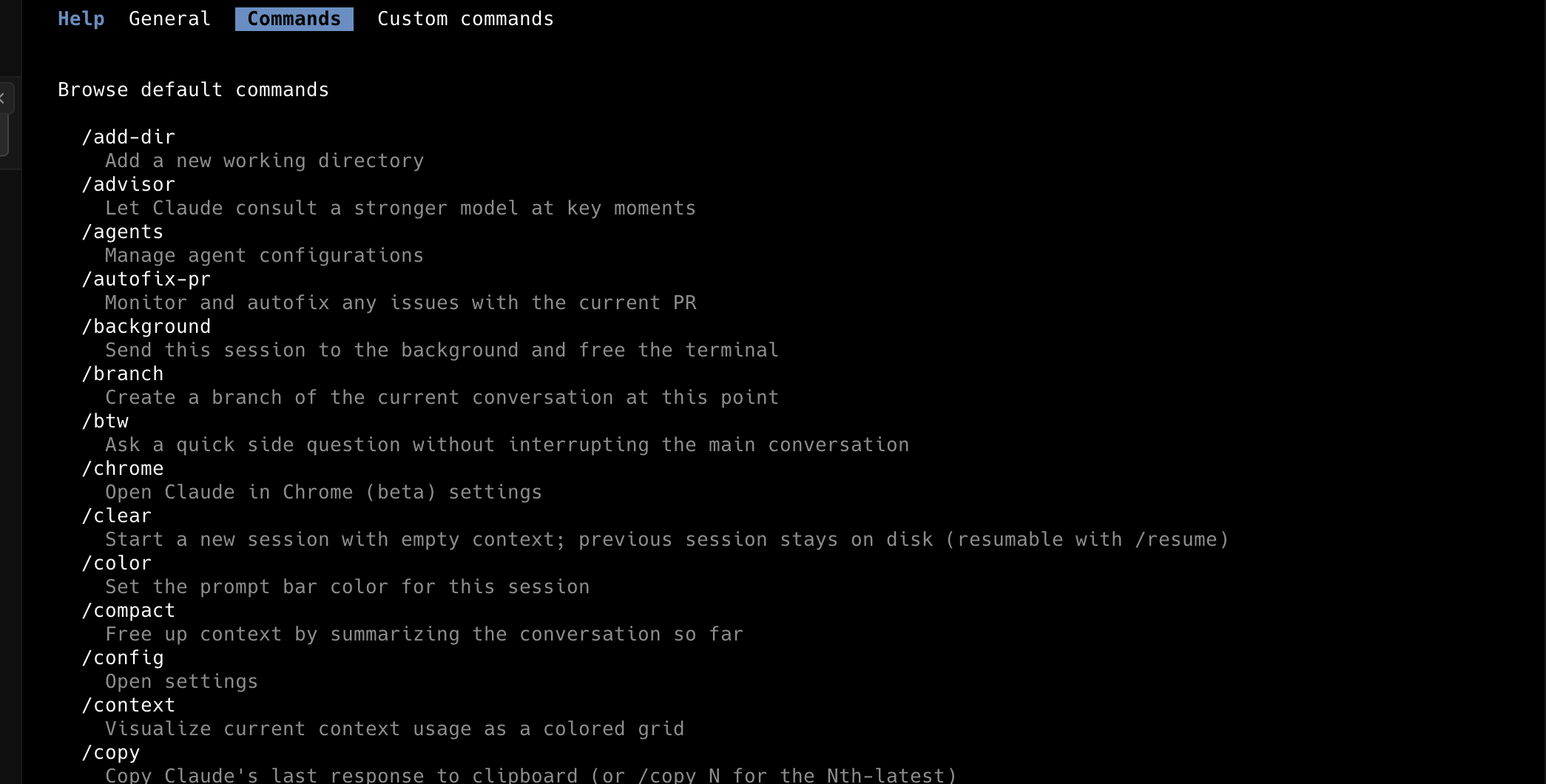
Type / and Claude Code shows you every command available to you; keep typing letters and the list filters. A command only counts at the very start of your message, and anything after the command name is handed to it as input. That last detail matters more than it sounds, and we’ll use it constantly in the second half.
A caveat the docs are blunt about, and so should this page be: “Not every command appears for every user. Availability depends on your platform, plan, and environment.” /desktop only shows on macOS and Windows with a subscription; /upgrade and /privacy-settings only show on Pro and Max; the cloud-provider setup commands only appear when the matching environment variable is set. So there’s no honest single number for “how many commands exist.” There are around ninety-odd entries, and your /help list is the only count that’s true for you.
Most of the set is single-purpose plumbing you’ll touch once and forget. A smaller group you’ll reach for every working session. Start there.
The ones you’ll actually live in
A dozen commands carry most of a knowledge-work session. The third column is the one to read: not what each does, but when to reach for it.
| Command | What it does | Reach for it when |
|---|---|---|
/context | Draws the session as a colored grid showing where the space is going: which files are heavy, whether memory has bloated, how close you are to full. | Claude starts feeling slower or vaguer partway through a long session and you want “something feels off” turned into a picture of what’s eating the room. |
/compact | Summarizes the conversation so far, freeing space while keeping the thread going. | Context is dragging on performance, or you’re about to start a long new task in the same thread. (See the next section: /compact vs /clear is the call worth getting right.) |
/clear | Starts a fresh conversation with empty context and parks the old one in /resume. | You’re switching to an unrelated job and the last task’s file-reads are now pure clutter. |
/model | Switches which Claude you’re talking to and saves it as your default. | You want a different model for the work in front of you; takes effect on the next response. |
/effort | The reasoning dial: low, medium, high, then xhigh, max, ultracode for the heavier settings, plus auto to reset. Which levels you get depends on the model. Lower is faster and lighter, higher spends more thinking on the answer. | Drop it for a quick reformat. Raise it for a gnarly analysis where the first answer has to be right. Movable mid-task. |
/resume | Reopens an earlier conversation by name or from a picker. | You want to come back to last Tuesday’s analysis instead of re-explaining it from scratch. |
/branch | Forks the conversation at the current point so you can try a direction without losing the version you have. | You want to explore a risky reframe of a report and keep the draft that worked. |
/rewind | Rolls things back to an earlier checkpoint. | An approach went wrong and you want to undo it rather than argue your way out. |
/export | Writes the whole conversation out as plain text, to a file or your clipboard. | A research session needs to become something you paste into a doc or hand to a colleague. |
/copy | Grabs the last response, or the Nth-from-last if you pass a number; shows a picker for code or structured blocks. | You want to lift exactly one table or list out of a response, not the whole thing. |
/memory | Edits the CLAUDE.md files that load at the start of every session: your house style, number formatting, the sources you trust. | You’re re-typing the same standing instruction into chat every morning and want it to survive every future session. |
/init | Writes a starter CLAUDE.md for a new project folder. | You’re starting in a new folder and don’t want to stare at a blank file. |
/plan | Drops Claude into plan mode: it reads and thinks but waits for your approval before acting. | A multi-step job spans a folder of files and you’d rather review the plan than discover after the fact what got touched. |
/btw | A quick side question whose answer appears and then vanishes without bloating the conversation. | You want to ask “what’s the difference between these two file formats” mid-task without paying for it in context all session. |
Two more in that list aren’t fixed commands at all, but the same kind of thing you’ll build yourself in the second half, just shipped in the box. /deep-research is a bundled workflow: it takes a question, fans out web searches across many sources, cross-checks them, and hands back a cited report. Point it at “what changed in EU battery-recycling rules this year” and it does the legwork and shows its sources rather than asserting an answer. /code-review is a bundled skill that sounds code-only, and mostly is, but its plain-English habit (read a body of work, flag what’s weak, optionally fix it) is the shape of a lot of document review too.
Knowing when to compact and when to clear
This is the judgment the docs never quite hand you, because it’s judgment and not a rule. Everything you and Claude say, every file it reads, every result it produces, sits in a context window that fills faster than people expect, and performance degrades as it fills. Managing that window across a long session matters more than managing time. Claude Code compacts automatically as you near the limit, but the when and what are yours to control, and /compact and /clear do genuinely different things.
/compact | /clear | |
|---|---|---|
| What it does | Shrinks the current conversation to a summary and keeps going in the same thread. | Wipes the slate, starts a new conversation, parks the old one in /resume. |
| What survives | Your requests and intent, key concepts, files examined with their important snippets, errors and how they got fixed, work in progress. Drops the verbatim middle: full tool outputs and intermediate reasoning. | Nothing carries forward. Fresh context, by design. |
| When to use | Context is dragging, or you’re starting a long new task inside the same thread. | You’re switching to an unrelated job and the last task’s file-reads are now pure clutter. |
A few rules worth pinning to the wall:
- You can aim a compact.
/compact focus on the Q3 revenue figureskeeps what you choose instead of what the automatic pass guesses matters. - Corrected Claude three times on the same thing? Don’t correct a fourth. Past two corrections the context is cluttered with failed approaches. The docs put it plainly: “A clean session with a better prompt almost always outperforms a long session with accumulated corrections.”
/clearand restate, baking in what you just learned. - There’s no magic percentage. No published “auto-compacts at X percent” threshold exists; the docs’ context-window simulation shows a 200,000-token window with its numbers explicitly labeled illustrative. Anyone who quotes you a fill level is reading an animation as a spec.
- Sometimes you should let context accumulate. When you’re deep in one complex problem, the history is valuable. Compacting and clearing aren’t virtues to perform on a schedule; the skill is noticing which situation you’re in.
Everything else
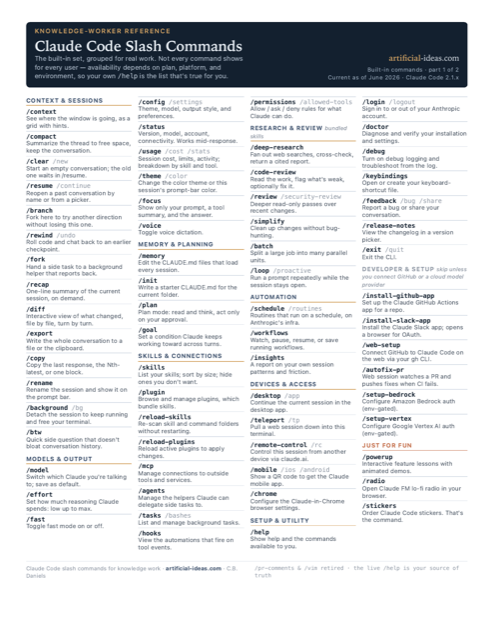
Past the dozen you live in, the rest is single-purpose: commands you meet once, use, and don’t think about again. That’s what a reference is for. You don’t memorize this, you scan it when you need it, and the full grouped set lives on the downloadable cheat sheet below, so this table sticks to the ones worth knowing exist. Each is reframed for knowledge work but does what the official reference says it does.
| Command | What it does |
|---|---|
/help | Show help and the commands available to you. |
/login, /logout | Sign in to or out of your Anthropic account. |
/status | Open settings on the Status tab: version, model, account, connectivity. Works mid-response. |
/usage | Session cost, plan limits, and activity; on paid plans, a breakdown by skill and tool. Aliases: /cost, /stats. |
/config | Open Settings to change theme, model, output style, and preferences. Alias: /settings. |
/fast | Toggle fast mode on or off. |
/fork | Hand a side task to a background helper that inherits the conversation and reports back when done. |
/rename | Rename the current session and show it on the prompt bar. |
/recap | Generate a one-line summary of the current session on demand. |
/diff | Open an interactive viewer of what changed, file by file and turn by turn. |
/goal | Set a condition Claude keeps working toward across turns until it’s met. |
/agents | Manage the helper configurations Claude can delegate side tasks to. |
/tasks | List and manage background tasks. Also /bashes. |
/background | Detach the session to keep running in the background and free your terminal. Alias: /bg. |
/permissions | Manage what Claude can do without asking, by allow / ask / deny rules. Alias: /allowed-tools. |
/hooks | View the automations that fire on tool events. |
/mcp | Manage connections to outside tools and services. |
/skills | List your available skills; sort by size; hide ones you don’t want offered. |
/plugin | Browse and manage plugins, which bundle skills and integrations. |
/reload-skills | Re-scan skill and command folders so on-disk changes show up without restarting. |
/reload-plugins | Reload active plugins to apply changes without restarting. |
/review, /security-review | Deeper read-only review passes over recent changes. |
/simplify | Review changes for cleanup and apply the fixes, without bug-hunting. |
/batch | Break a large change into many independent units and run them in parallel. |
/loop | Run a prompt repeatedly while the session stays open, e.g. polling for a result. Alias: /proactive. |
/schedule | Create and manage routines that run on a schedule, on Anthropic’s infrastructure. Alias: /routines. |
/workflows | Watch, pause, resume, or save running and completed workflows. |
/insights | Generate a report on your own session patterns and friction points. |
/desktop | Continue the current session in the desktop app. Alias: /app. |
/teleport | Pull a web session down into this terminal. Also /tp. |
/remote-control | Make this session controllable from another device via claude.ai. Alias: /rc. |
/mobile | Show a QR code to get the Claude mobile app. Aliases: /ios, /android. |
/voice | Toggle voice dictation. |
/chrome | Configure the Claude-in-Chrome browser settings. |
/theme, /color | Change the color theme, or set the prompt-bar color for this session. |
/focus | Show only your last prompt, a one-line tool summary, and the final response. |
/keybindings | Open or create your keyboard-shortcut file. |
/doctor | Diagnose and verify your installation and settings. |
/debug | Turn on debug logging and troubleshoot from the log. |
/feedback | Report a bug or share your conversation, with session context attached. Aliases: /bug, /share. |
/release-notes | View the changelog in a version picker. |
/exit | Exit the CLI. Alias: /quit. |
A last cluster is built for software work, and for completeness it’s listed here rather than quietly dropped. These won’t earn a place in your daily knowledge work, so they get plain one-liners and no knowledge-work spin they don’t have. If you connect Claude Code to GitHub or run it against a cloud model provider, you’ll meet them; otherwise you can skip the table.
Developer and setup
| Command | What it does |
|---|---|
/install-github-app | Set up the Claude GitHub Actions app for a repository, with a guided walkthrough. |
/install-slack-app | Install the Claude Slack app; opens a browser for the OAuth flow. |
/web-setup | Connect your GitHub account to Claude Code on the web using your local gh CLI credentials. |
/autofix-pr | Spawn a web session that watches the current branch’s pull request and pushes fixes when CI fails or reviewers comment. |
/setup-bedrock | Configure Amazon Bedrock auth, region, and model pins. Only shows when CLAUDE_CODE_USE_BEDROCK=1 is set. |
/setup-vertex | Configure Google Vertex AI auth, project, region, and model pins. Only shows when CLAUDE_CODE_USE_VERTEX=1 is set. |
They’re all in the official reference if you want the detail. Two commands you might see referenced elsewhere are gone: /pr-comments was removed in v2.1.91 and /vim in v2.1.92 (Vim editing moved into /config). If a guide tells you to run them, it predates this version.
A few just for fun
Not everything in the list is work. /powerup walks you through Claude Code features as short interactive lessons with animated demos, which is a gentler way to find what you’ve been missing than reading this whole page. /radio opens Claude FM, a lo-fi radio stream, in your browser, and prints the stream URL when there’s no browser to open, which is a thoughtful touch for something whose entire job is background music. It’s not available on Bedrock, Vertex, or Foundry, in case your day involves those. And /stickers orders Claude Code stickers. That’s the command. It orders stickers.
Build your own
This is where slash commands stop being a fixed menu and start being yours. The work you repeat is exactly what a custom command is for: the same instructions you paste into chat over and over, the same checklist, the same five-step procedure. You write it down once, and after that you type a slash and a name.
There are two ways to make one. Start with the two-minute version.
The two-minute version: a markdown file
Make a folder called .claude/commands in your project, and drop a markdown file in it. The filename becomes the command. A file at .claude/commands/summarize.md gives you /summarize, a file called vet.md gives you /vet, and so on. The contents of the file are just the instructions you’d otherwise type.
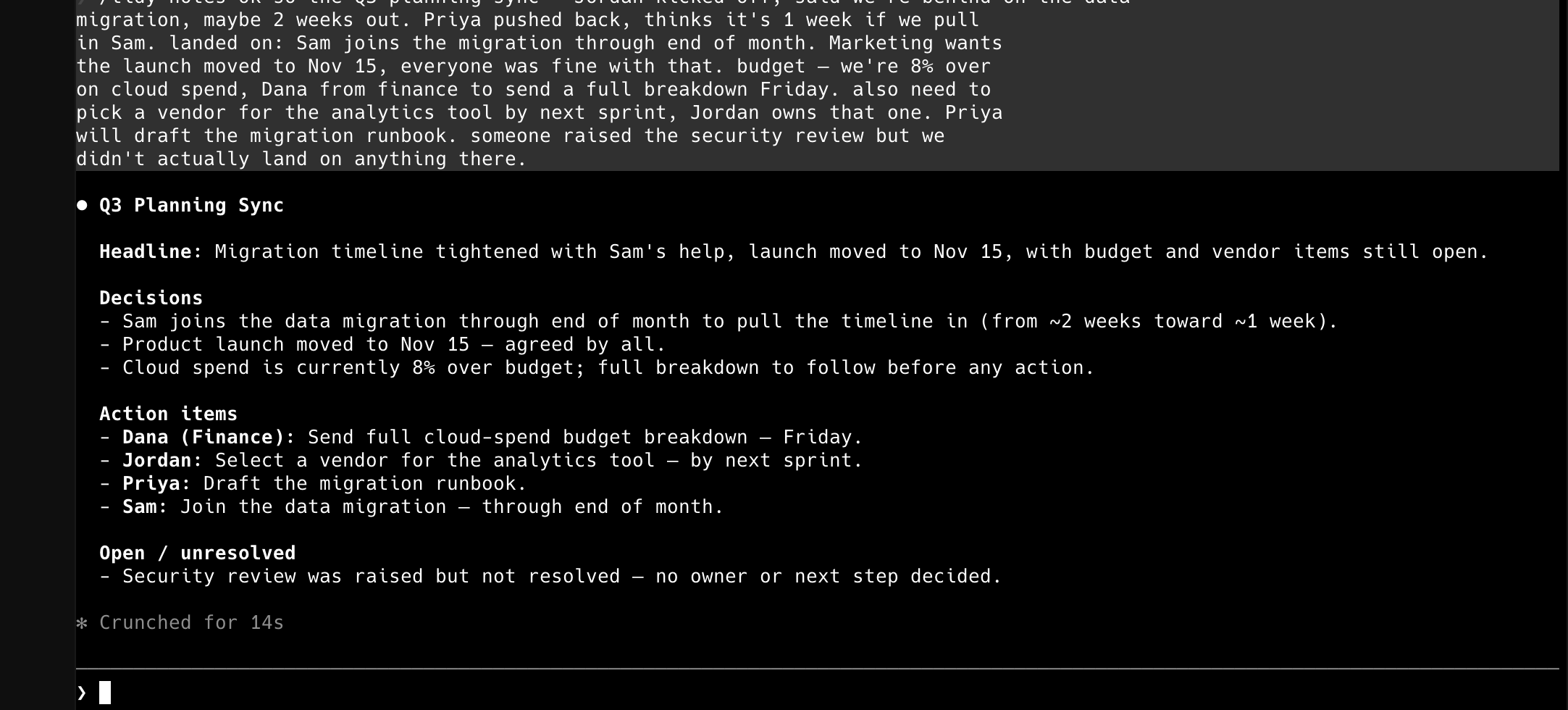
Say you keep asking Claude to clean up meeting notes the same way. Put this in .claude/commands/tidy-notes.md:
Turn the notes I'm sharing into a clean summary:
a one-line headline, three to five bullet points of what was
decided, and a separate list of action items with owners.
Keep it short. Don't invent anything that isn't in the notes.
That’s the whole command. Now /tidy-notes runs those instructions any time you want, in any session. No frontmatter, no setup, no syntax to learn. If you have a paragraph you retype more than twice a week, this is a two-minute fix and you should stop reading and go make it.
You can hand it input, too. Anything you type after the command name gets passed in, and the placeholder $ARGUMENTS is where it lands. A file .claude/commands/explain.md containing Explain $ARGUMENTS in plain language for a smart non-specialist. turns /explain net revenue retention into exactly that request. If you leave $ARGUMENTS out and pass input anyway, Claude Code appends it to the end so your text still gets seen.
The real system: Skills
The markdown file is the on-ramp. The full system is Skills, and the two are now the same mechanism. The docs state it directly: “Custom commands have been merged into skills. A file at .claude/commands/deploy.md and a skill at .claude/skills/deploy/SKILL.md both create /deploy and work the same way.” Your existing command files keep working. A Skill is what you graduate to when a command wants more than a paragraph.
The vocabulary is worth pinning down, because the two words get used loosely. The slash command is what you type. The Skill is how you build a custom one now. They merged, so the older “slash commands are a separate feature” framing you’ll find in pre-2026 writeups is simply out of date.
A Skill is a folder with one required file inside it, SKILL.md, and that file has two parts: a small block of frontmatter that tells Claude when the skill applies, and the instructions underneath. The folder name becomes the command. So .claude/skills/vet-source/SKILL.md gives you /vet-source. Here’s a complete one:
---
description: Vet a source for reliability. Use when the user
  shares a link, a study, or a claim and asks whether to trust it.
---

Assess the source I'm sharing. Cover, briefly:
- who published it and whether they have a stake in the conclusion
- when it's from, and whether that still holds
- what the actual evidence is, versus what's asserted
- one thing I should independently check before relying on it

If you can't verify something, say so plainly. Don't pad.
Two things that folder gives you over the bare markdown file. First, the description line does real work: it’s how Claude decides to reach for the skill on its own when it’s relevant, not just when you type the slash. Write it well and the skill starts showing up when you need it without being summoned. Second, the folder can hold more than one file: a template to fill in, an example of the output you want, a script. So a skill can grow past a single paragraph without becoming a mess.
A few mechanisms turn these from canned prompts into something that pulls in live data. The most useful for knowledge work is shell injection: a line that runs a command and drops its output into the skill before Claude reads it. The syntax is a backtick command prefixed with an exclamation mark, written at the start of a line. From the docs: “The command output replaces the placeholder, so Claude receives actual data, not the command itself.” That’s how a skill can read today’s numbers instead of describing where to find them.
You also get control over who fires a skill. Add disable-model-invocation: true to the frontmatter and only you can run it, never Claude on its own. The docs give the reason in coding terms, “You don’t want Claude deciding to deploy because your code looks ready,” and the knowledge-work version is the same instinct: a skill that emails a client, posts to a channel, or overwrites a master file is one you want to pull the trigger on yourself.
And you can reference a file directly with @. Writing @budget-2026.csv in a prompt or skill makes Claude read that file before it answers, instead of you describing where the data lives.
A gallery to steal
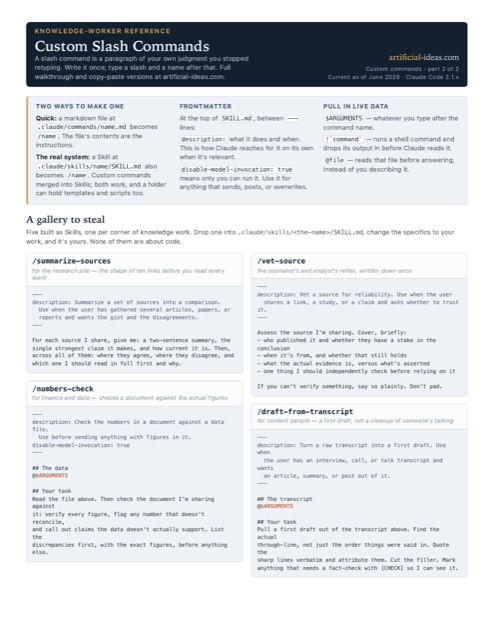
Here are five built as Skills, each for a different corner of knowledge work. Copy one into .claude/skills/<the-name>/SKILL.md, change the specifics to your work, and it’s yours. None of them are about code.
/summarize-sources, for the research pile: the shape of ten links or PDFs before you read every word.
---
description: Summarize a set of sources into a comparison.
  Use when the user has gathered several articles, papers, or
  reports and wants the gist and the disagreements.
---

For each source I share, give me: a two-sentence summary, the
single strongest claim it makes, and how current it is. Then,
across all of them: where they agree, where they disagree, and
which one I should read in full first and why./numbers-check, for finance and data: checks a document’s arithmetic and claims against the actual figures, reading the file live.
---
description: Check the numbers in a document against a data file.
  Use before sending anything with figures in it.
disable-model-invocation: true
---

## The data
@$ARGUMENTS

## Your task
Read the file above. Then check the document I'm sharing against
it: verify every figure, flag any number that doesn't reconcile,
and call out claims the data doesn't actually support. List the
discrepancies first, with the exact figures, before anything else.
Run it as /numbers-check q3-actuals.csv and the named file gets read straight in. It’s manual-only on purpose: a reconciliation check is something you run deliberately, not something Claude decides to do for you.
/vet-source, the one from above. The journalist’s and analyst’s reflex, written down once.
/draft-from-transcript, for content: a messy transcript in, a first draft out, not a cleanup of someone else’s talking.
---
description: Turn a raw transcript into a first draft. Use when
  the user has an interview, call, or talk transcript and wants
  an article, summary, or post out of it.
---

## The transcript
@$ARGUMENTS

## Your task
Pull a first draft out of the transcript above. Find the actual
through-line, not just the order things were said in. Quote the
sharp lines verbatim and attribute them. Cut the filler. Mark
anything that needs a fact-check with [CHECK] so I can see it./weekly-digest, the live-data one: it runs a command to gather the week’s material and writes the digest from what comes back, nothing pasted in.
---
description: Draft this week's digest from recent files.
  Use on a regular cadence to summarize what changed.
---

## This week's updated files
!`find . -name "*.md" -mtime -7 -not -path "*/.*"`

## Your task
For each file listed above, read it and pull what's new or
decided. Write a digest grouped by theme, newest first, with a
two-line "what to pay attention to" at the top. Keep it to one
screen.
That first line runs the find command and hands Claude the list of files changed in the last seven days, so the skill works from this week’s reality every time you run it. Swap the find for whatever gathers your week: a different folder, a different file type, a command that pulls from a connected tool.
That’s the whole idea. A slash command is a paragraph of your own judgment that you stopped retyping. The first one takes about two minutes, and once you have a handful of them, a fair amount of your week is running on instructions you only had to write once.
Where this maps onto Cowork
Back to the three tabs. If you spend your day in Cowork rather than the terminal, handing Claude a goal and coming back to a finished deliverable, the natural question is whether all of this comes with you. Cowork is the same machine with a different face, “the same agentic architecture that powers Claude Code, now accessible within Claude Desktop and without opening the terminal.” The engine is shared; the command surface is only partly the same. Part of it comes with you, and the part that doesn’t is worth being clear-eyed about.
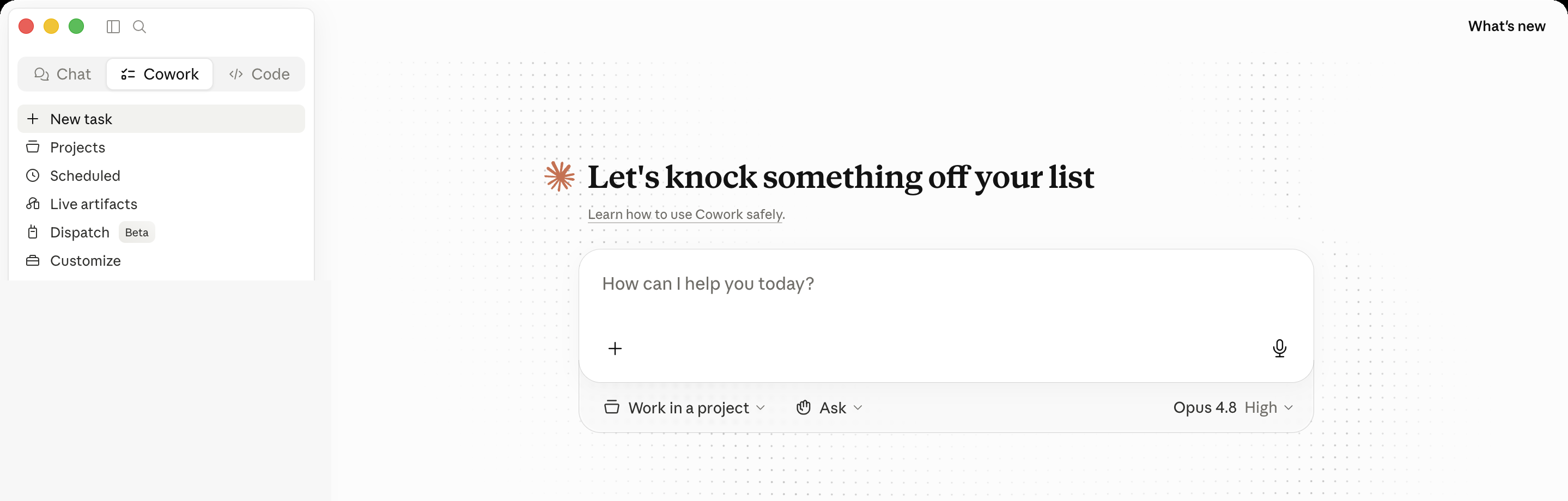
What comes with you. Your own commands. Cowork has a slash surface that works the way you’d hope: “Type ’/’ or click the ’+’ button to see the available skills from your installed plugins, in chat and in Cowork.”
- Your Skills (and the plugins you install) show up in Cowork, the same mechanism your command files from the second half now use.
- Plugins you install are available wherever you’re working.
What stays in the terminal. Cowork doesn’t put the whole built-in /command catalog in front of you the way Code does. It’s a buttons-first surface: scope, autonomy, and model live in on-screen controls instead of commands you type.
- Scope comes from a Project, its own folder, instructions, and memory, instead of a command.
- How freely Claude acts is the Ask before acting / Act without asking toggle, not a flag.
- Which model runs is the dropdown on the right, not
/model. - Plugin skills and settings live in the Customize menu.
It isn’t command-free, though. Typing / in Cowork pulls up a short, curated menu rather than the terminal’s long list: a handful that ship in the box (on a current build, /add-files, /context, /schedule, /setup-cowork, and /skill-creator) alongside your own skills and plugins. It’s a smaller, different set than the terminal’s, and it will shift as Cowork grows, so, same as there, the / menu in your own session is the real list.
Two honest caveats. The docs lag the app: the Cowork screen shows Live artifacts in its left nav, but the docs don’t use that term for Cowork yet. When the text and the app disagree, trust your eyes for what the buttons are called and the docs for what they do, and expect this section to age faster than the rest. And the reach is real: Cowork can read from and write to your files, delete them with your permission, and act across your apps, which is a lot more than a chat box can touch. The docs flag “unique risks due to its agentic nature and internet access.” That’s the trade for handing off a whole task, and it’s worth a deliberate choice.
So: Code when you want the full command set and a session you steer turn by turn. Cowork when you want to describe an outcome and step away, with your own skills coming along for the ride. Same engine, two ways to drive it, and now you know which commands ride in which.