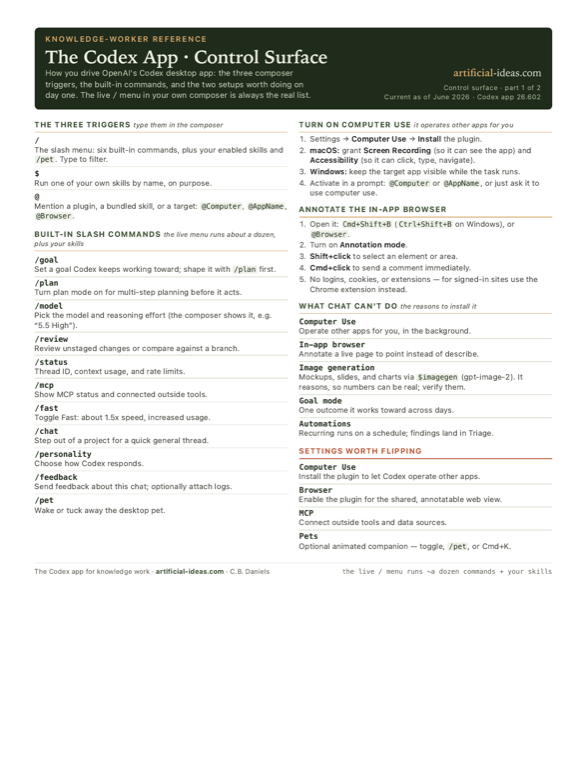
“Your Codex command center” is how OpenAI labels the Codex desktop app, and the word that matters is desktop. It’s a Mac and Windows app that runs threads side by side and reaches off its own window: it can drive any app on your screen, share a live web page you both mark up, hold one goal for days, and run your repeatable work on a schedule. None of that fits in a coding agent living in a chat tab. There is a terminal Codex too, and an IDE extension; this guide is the app. Two halves below: the control surface is how you drive it, and the section after it is what the app does that a plain chat box can’t.
One honest note before the list. The app ships about every week. This guide is current as of June 2026, on the Codex app 26.602 build, and a few entries will drift between releases. The ground truth is always your own composer: type / and the live menu is the real list.
The control surface
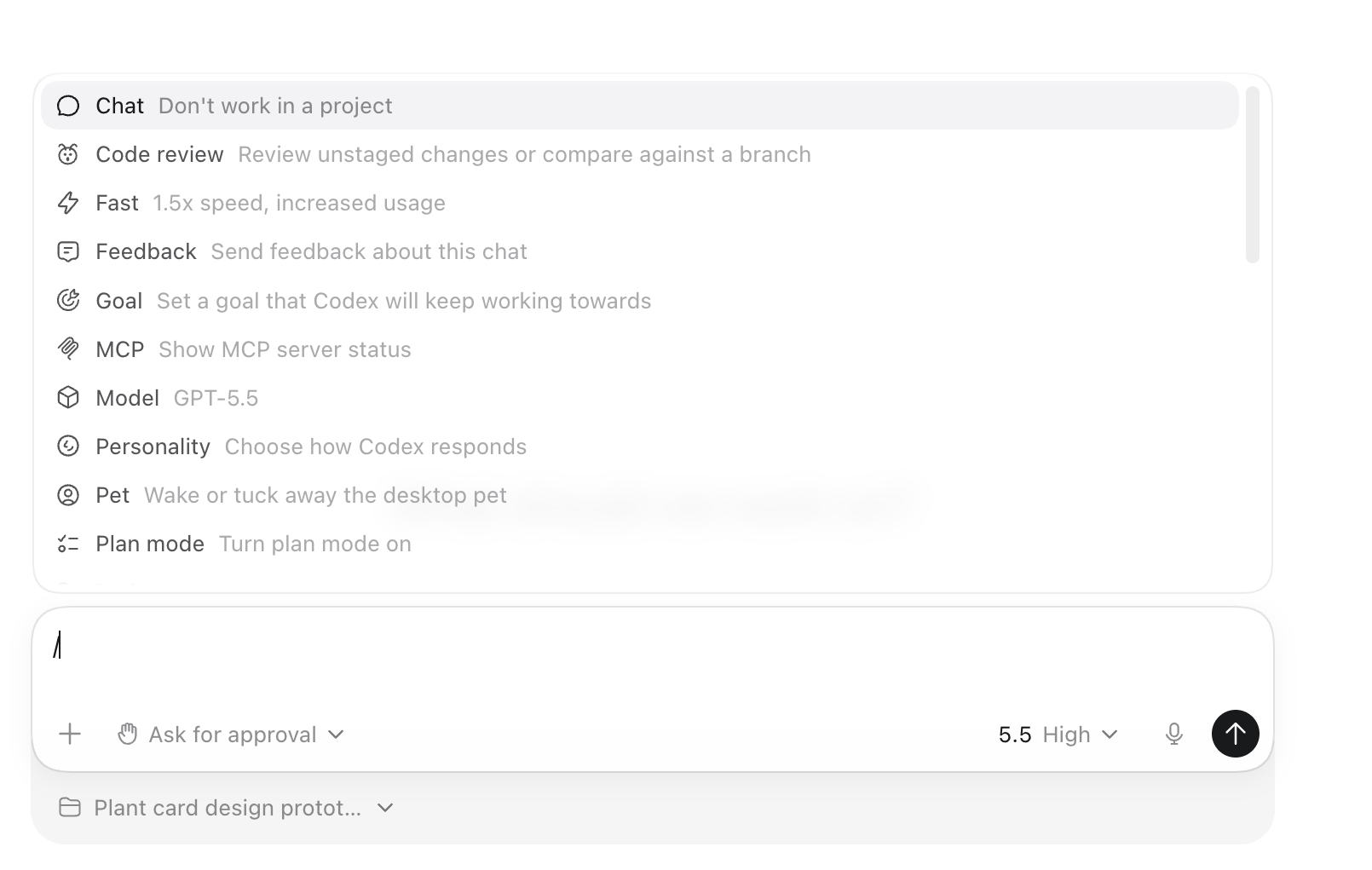
How you talk to the app. Three characters do most of the work, and you type them straight into the thread composer.
The three triggers
| Type | What it pulls up | Reach for it when |
|---|---|---|
/ | The slash menu: about a dozen built-in commands, plus your enabled skills and /pet. “Select a command from the list, or keep typing to filter.” | You want a built-in action (set a goal, switch the model, start a review) or to fire one of your own skills by name. |
$ | Your skills, explicitly. “You can also explicitly invoke skills by typing $ in the thread composer.” | You’ve built a repeatable move (a weekly report, a data clean-up) and want to run it on purpose rather than wait for Codex to pick it. |
@ | A mention: a plugin, a plugin’s bundled skill, or a target. “Type @ to invoke the plugin or one of its bundled skills explicitly.” Targets include @Computer, @AppName, and @Browser. | You want Codex to act through something specific: a connected app, the in-app browser, or another program on your machine. |
The built-in slash commands
The docs name six. The live / menu on the 26.602 build holds about a dozen, plus your skills and /pet, so the docs undercount, which is exactly why the line above tells you to trust your own composer over any list, including this one. Here are the ones a knowledge worker reaches for, with their in-app descriptions.
| Command | What it does | Reach for it when |
|---|---|---|
/goal | “Set a goal that Codex will keep working towards.” Use /plan first to shape it. | You have an outcome that spans hours or days and you want Codex steering toward it across many turns. |
/plan | Shown as Plan mode: “Turn plan mode on.” | A job has several stages and you’d rather approve the plan than discover after the fact what got done. |
/model | Shows the current model (GPT-5.5) and opens the model and reasoning-effort picker. | You want a heavier model or more thinking on a hard analysis, or a lighter, faster one for a quick pass. |
/fast | “1.5x speed, increased usage.” | You’re doing quick, shallow turns and want them snappier, at the cost of burning quota faster. |
/chat | “Don’t work in a project.” Opens a general thread outside any project. | You want a one-off conversation that isn’t scoped to a project’s files and context. |
/review | “Review unstaged changes or compare against a branch.” | You want a structured second read of changes before they go anywhere. (Code-framed, but the diff-and-comment habit carries to document review.) |
/status | The thread ID, context usage, and rate limits. | A long thread feels heavy and you want to see how full it is and where you stand on limits. |
/mcp | “Show MCP server status.” | You’ve wired up outside tools through MCP and want to confirm what’s connected. |
/feedback | “Send feedback about this chat.” | Something’s off and you want to report it with the session context attached. |
Two more round out the menu: /personality (“Choose how Codex responds”) and /pet (“Wake or tuck away the desktop pet”, which also turns up in the fun closer below).
Turning on Computer Use
The toggle that lets Codex see and operate other apps. “With computer use, Codex can see and operate graphical user interfaces on macOS or Windows.” Setup is short.
- Open Settings, go to Computer Use, and click Install to add the Computer Use plugin.
- On macOS, grant two system permissions when prompted:
- Screen Recording, “so Codex can see the target app”
- Accessibility, “so Codex can click, type, and navigate”
- On Windows, keep the target app visible on the active desktop while the task runs. (Windows support is recent, landing in the 26.527 build on 2026-05-29; macOS is the mature path and the one that runs scoped tasks in the background.)
- Activate it in a prompt: mention
@Computeror@AppName, or just ask Codex to use computer use.
Annotating in the in-app browser
The in-app browser is a web page you and Codex both see inside a thread: “a shared view of rendered web pages.” Open it with Cmd+Shift+B (Ctrl+Shift+B on Windows). Instead of describing what you mean, you point.
- Turn on Annotation mode, select an element or area, and submit a comment.
- “In Annotation mode, hold Shift and click to select an area.”
- “Hold Cmd while clicking to send a comment immediately.”
One limit worth knowing: the in-app browser “does not support authentication flows, signed-in pages, your regular browser profile, cookies, extensions, or existing tabs.” For anything behind a login, that’s the Chrome extension’s job, which the next section covers.
What chat can’t do
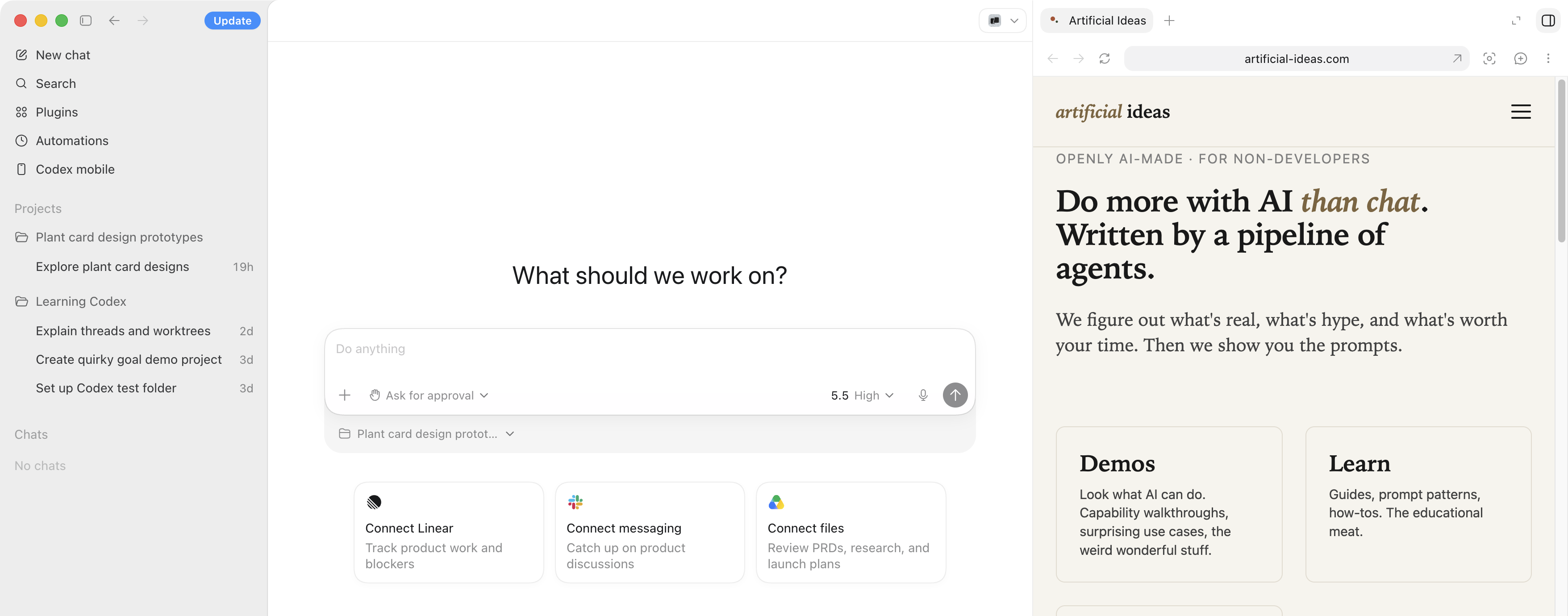
Five things the chat box can’t do. This is the reason the app exists, and it’s the most on-audience part of the guide: pure knowledge-work power, almost none of it about writing code. Each one is what it is → the payoff → how to turn it on.
Computer Use: it drives apps that have no integration
What it is. Codex sees your screen, then clicks and types across other apps for you. Activate it with @Computer or @AppName.
The payoff. It reaches the work nothing else can. The docs list two on-audience cases by name: “Inspecting information unavailable through plugins” and “Changing app settings through UI.” That’s a desktop app with no API, a report locked inside a program you can only point and click, a data source no plugin connects to. Codex operates the actual interface, the way you would.
How to turn it on. Install the Computer Use plugin in Settings, grant Screen Recording and Accessibility on macOS, then mention @Computer in a prompt. Keep the task narrow and stay nearby for anything sensitive.
Annotate the browser: point instead of describe
What it is. A rendered page you and Codex share inside the thread. You mark it up directly to give pinpoint instructions.
The payoff. No more writing a paragraph to describe one spot on a page. Shift+click the chart that’s wrong and comment “this axis is mislabeled.” Cmd+click a paragraph and say “tighten this.” One frontend writer put the contrast plainly: instead of “move the CTA button up and increase the heading weight,” you select the button and write “move this up,” annotate the heading with “bolder.” The same shortcut works on any rendered page you’re reviewing.
How to turn it on. Install and enable the Browser plugin, then open the browser with Cmd+Shift+B (Ctrl+Shift+B on Windows), or reference it with @Browser. For signed-in sites, use the Chrome extension instead: it “lets Codex use Chrome for browser tasks that need your signed-in browser state,” for sites “such as LinkedIn, Salesforce, Gmail, or internal tools.”
Goal mode: one outcome, held for days
What it is. A persistent goal Codex works toward across many turns, not a single request. “Set a persistent goal for Codex to work toward; use /plan first to shape it.”
The payoff. You name the destination once and steer instead of re-explaining. “Keep this competitive-analysis deck current as new filings drop.” “Drive this dataset to a clean, reconciled state.” Codex holds the thread of it while you do other things.
How to turn it on. Type /plan to shape the steps, then /goal to set the target it works toward.
Automations: your repeatable work, on a schedule
What it is. Recurring Codex tasks that run in the background. Two kinds: standalone automations “start fresh runs on a schedule and report results in Triage,” and thread automations are “heartbeat-style recurring wake-up calls attached to the current thread.”
The payoff. The standing chore stops needing you to start it. A Monday-morning digest of what changed. A scheduled scan of a data source for anomalies. A daily triage pass that surfaces only what needs a human. Results collect in Triage, your inbox: “Automation runs with findings show up there.”
How to turn it on. Pick a cadence (daily, weekly, or “choose a custom schedule and enter cron syntax”). One piece of guidance the docs put first: “Before you schedule an automation, test the prompt manually in a regular thread first.” Get it right once by hand, then let it run.
Image generation: make the visual inside the thread
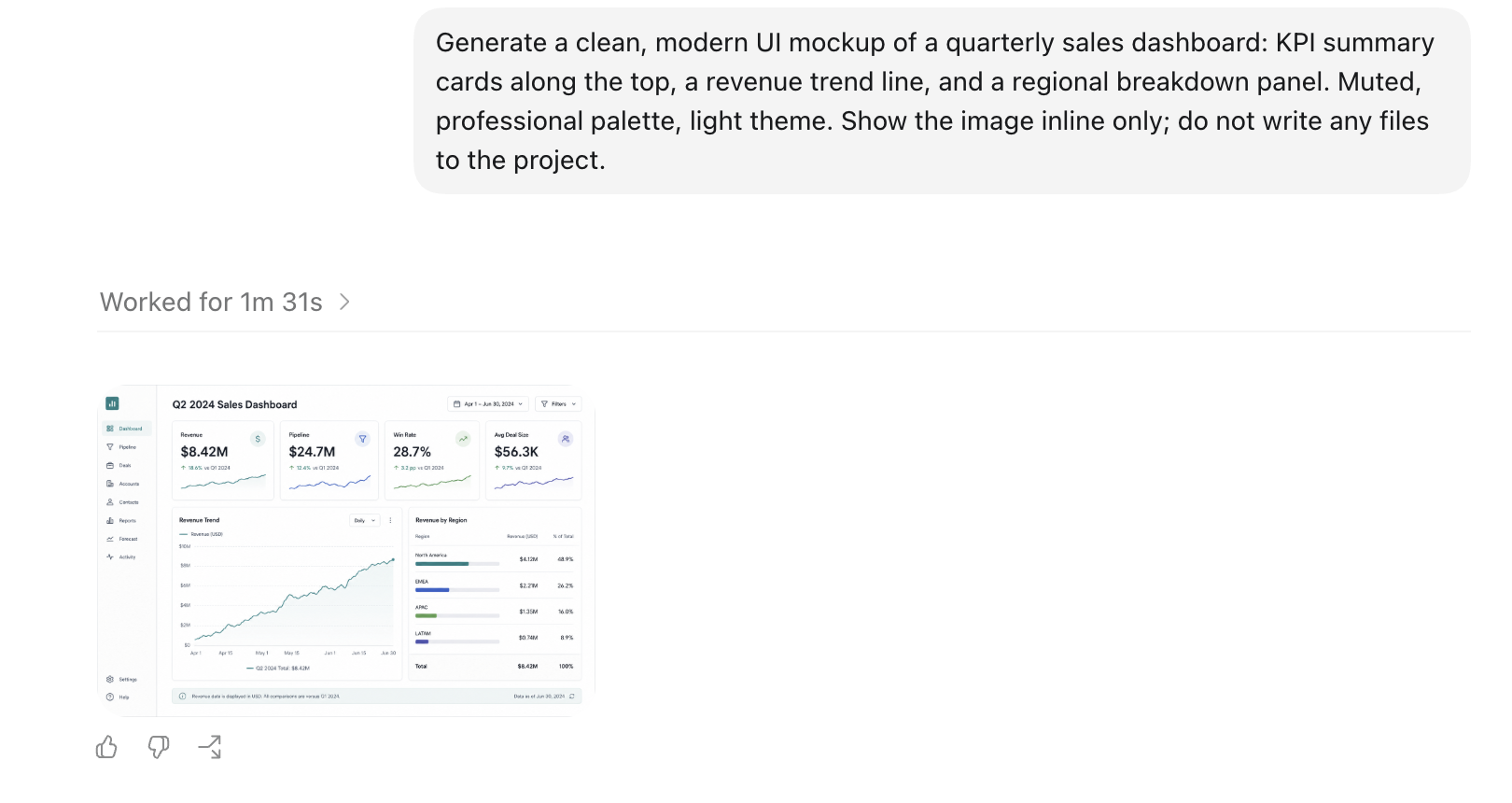
What it is. A built-in image model (gpt-image-2) you call inside a thread, in plain language or by typing $imagegen. The docs name what it’s for: “useful for UI assets, banners, backgrounds, illustrations, sprite sheets, and placeholders.” Add a reference image and it edits or extends what you give it, not just text-to-image.
The payoff. Two of them. The first is the generate-and-act loop: ask for a UI mockup, Codex writes the code to build the real thing, and you iterate on the rendered page in the in-app browser, asset and code re-rendering together. A standalone image tool stops at the picture. The second is the everyday knowledge-work visual: slide cover art, concept illustrations, infographics, mockups, generated without leaving the thread you’re already working in. This is the kind of work the non-developers are showing up for, and OpenAI says there are more of them every month: “about 20% of overall Codex users and are growing more than 3x as fast as developers.”
The surprising part: it can draw real numbers. There’s a reasoning model behind gpt-image-2, so it doesn’t just lay down decorative shapes. Give it real data and it reasons about the values before it draws, then writes them into the picture, real and valid, a lot of the time. That’s rarer than it sounds; most image models can’t put an accurate number on a chart to save their lives. So the range here is wider than slide art and mockups: hand it a quarter’s figures and it’ll often render a chart that actually says what your data says.
Two caveats, both still true. The output is a raster image, so verify any numbers it produces before you trust them; “a lot of the time” is not “always,” and a picture can’t be linted. And when you need a number to be guaranteed-exact or the chart to stay editable, the kind bound to a spreadsheet, or one you’ll tweak again next week, native code (matplotlib) or a Mermaid diagram is still the cleaner path. The honest summary: surprisingly capable, real numbers included, a lot of the time. Check them, and reach for code when you need certainty or something you can edit.
How to turn it on. Nothing to install; imagegen ships on by default. Ask for an image in plain language, or put $imagegen in the prompt. One cost to know: an image turn burns your Codex usage limits 3-5x faster than a text turn, so generate deliberately rather than fishing.
A few more, briefly
The five above are the headline reasons to leave the chat box, but the app carries more worth a heads-up. Each one in a line: what it is, and why you’d reach for it.
| Feature | What it is | Why you’d use it |
|---|---|---|
| Plugins | Prebuilt capability bundles from the directory (90-plus at the April launch). | Add a whole workflow without building it yourself. |
| MCP | A way to connect your own tools and data sources. | Wire Codex into the systems that hold your work. |
| Subagents | A big job fanned into parallel sub-tasks, only when you ask. | Cover a lot of ground at once. |
| Worktrees and run modes | Local, Worktree, or Cloud: isolate or offload a piece of work. | Keep an experiment off your main files, or hand a long job to the cloud. |
| Built-in web search | Pulls current information into a task. | Work from today’s facts, not the model’s memory. |
| ChatGPT-mobile handoff | Steer a running task from your phone. | Nudge a long job along while you’re away from the desk. |
Make it yours
The repeatable work is the point. Anything you’d paste into a prompt twice a week becomes a skill you invoke by name.
Skills are the path; custom prompts are out
OpenAI is direct about which way to go. The custom-prompts page leads with a deprecation notice: “Custom prompts are deprecated. Use skills for reusable instructions that Codex can invoke explicitly or implicitly.” The old way still works (~/.codex/prompts/*.md files, invoked /prompts:name in the CLI or IDE), but it’s on the way out, and it never ran in the app the way Skills do. Build skills.
The mechanism is small:
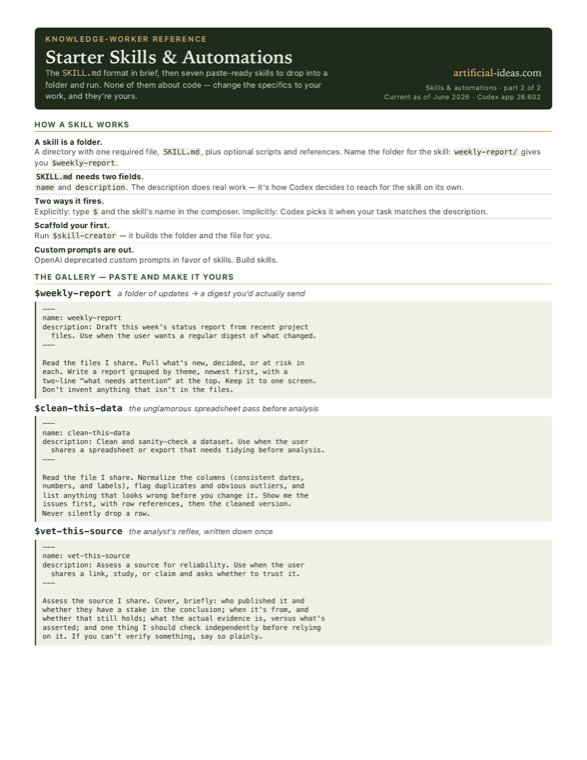
- A skill is a folder with one required file. “A skill is a directory with a
SKILL.mdfile plus optional scripts and references.” SKILL.mdneeds two fields. “TheSKILL.mdfile must includenameanddescription.” The description does real work: it’s how Codex decides to reach for the skill on its own.- Two ways it fires. Explicitly, by typing
$and the skill’s name in the composer. Or implicitly: “Codex can choose a skill when your task matches the skilldescription.” - The shortcut to your first one. “Use the built-in creator first:
$skill-creator.” It scaffolds the folder and the file for you.
A gallery to steal
Seven skills and one automation, each for a different corner of knowledge work. Drop the markdown into a folder named for the skill (weekly-report/SKILL.md gives you $weekly-report), change the specifics to your work, and it’s yours. None of them are about code.
$weekly-report turns a folder of updates into a digest you’d actually send.
---
name: weekly-report
description: Draft this week's status report from recent project
  files. Use when the user wants a regular digest of what changed.
---

Read the files I share. Pull what's new, decided, or at risk in
each. Write a report grouped by theme, newest first, with a
two-line "what needs attention" at the top. Keep it to one screen.
Don't invent anything that isn't in the files.
$clean-this-data does the unglamorous spreadsheet pass before analysis.
---
name: clean-this-data
description: Clean and sanity-check a dataset. Use when the user
  shares a spreadsheet or export that needs tidying before analysis.
---

Read the file I share. Normalize the columns (consistent dates,
numbers, and labels), flag duplicates and obvious outliers, and
list anything that looks wrong before you change it. Show me the
issues first, with row references, then the cleaned version.
Never silently drop a row.
$vet-this-source is the analyst’s reflex, written down once.
---
name: vet-this-source
description: Assess a source for reliability. Use when the user
  shares a link, study, or claim and asks whether to trust it.
---

Assess the source I share. Cover, briefly: who published it and
whether they have a stake in the conclusion; when it's from, and
whether that still holds; what the actual evidence is, versus what's
asserted; and one thing I should check independently before relying
on it. If you can't verify something, say so plainly.
$brief-from-transcript pulls a first draft out of a recording.
---
name: brief-from-transcript
description: Turn a raw transcript into a first draft. Use when the
  user has an interview, call, or meeting transcript and wants a
  brief, summary, or post out of it.
---

Read the transcript I share. Find the actual through-line, not just
the order things were said. Quote the sharp lines verbatim and
attribute them. Cut the filler. Mark anything that needs a
fact-check with [CHECK] so I can see it. End with the open
questions.
$meeting-notes turns a messy recording into something you can act on.
---
name: meeting-notes
description: Turn meeting notes or a transcript into decisions and
  action items. Use when the user shares notes from a call or
  meeting and wants the outcomes pulled out.
---

Read the notes I share. Pull out three things: decisions made,
action items (each with an owner and a due date if one was given),
and open questions left unresolved. Put action items at the top.
If an owner wasn't named for a task, mark it [UNASSIGNED] rather
than guessing. Keep it to one screen.
$reconcile-numbers is the cross-check you’d do by hand, written down once.
---
name: reconcile-numbers
description: Cross-check a figure across documents and flag
  mismatches. Use when the user wants the same number verified
  across several files or sections.
---

Find the figure I name in each document I share. List where it
appears and what value it takes in each place. Flag every spot
where the numbers disagree, with the exact source for each. Don't
pick a winner or average them; show me the discrepancy and let me
decide. If a document doesn't contain the figure, say so.
$format-citations does the tidying nobody enjoys.
---
name: format-citations
description: Normalize a list of references into one consistent
  citation style. Use when the user has mixed-format sources and
  wants them cleaned up.
---

Read the references I share. Put them all in the style I name (or
ask which one if I didn't say). Flag any entry missing a piece the
style requires, like a date or a page range, rather than inventing
it. Keep the original order unless I ask to sort. List the entries
you couldn't fully format at the bottom so I can fix them.
Scheduled triage, as an automation. Build it as a skill, test it by hand once, then schedule it so it runs into your Triage inbox without you starting it.
---
name: morning-triage
description: A daily pass over the inbox folder that surfaces only
  what needs a human and drafts the easy replies.
---

Read the items in the inbox I point you at. Sort them: needs a
decision, needs a reply, FYI, ignore. For the "needs a reply" ones,
draft a short response I can edit. Put the decisions at the top with
one line each on what's at stake. Don't send anything; just draft.
Wire that last one up by testing the prompt in a regular thread first, then setting a daily schedule (or a cron line for an odd cadence). Findings land in Triage.
The fun parts are real
A few things worth knowing because they’re genuinely good, not because a feature list told you to care.
- It does the GUI chores while you work. macOS Computer Use runs scoped tasks in the background, so Codex can click through some tedious interface in one thread while you write in another. The boring part of the job, handed off.
- Annotating a page feels like a sticky note. Shift+click the spot, type what you mean, done. The first time you fix something by pointing at it instead of describing it, the describing starts to feel like the slow way.
- It carries memory between threads. Codex can “carry useful context from past tasks into future threads,” so the standing instructions you’ve already given don’t evaporate when you start something new.
- And there are pets. Codex Pets are optional “animated companions,” toggled via Settings, the
/petcommand, or Cmd+K. Making your own is a three-step demo of the Skill Installer: run$skill-installer hatch-petto add the skill,$hatch-pet ...to create a creature, then pick it in Settings, under Appearance, Pets. A command-center desktop app for serious work also lets you hatch a small animated companion, and both of those things are true.
If you came from the Claude Code piece, the instinct transfers cleanly: the work you repeat becomes a skill, and a slash, a $, or an @ runs it. The app just hands that instinct a screen, a browser, and a schedule to point it at.