Here’s a loop you might recognize. You ask the AI something, the answer isn’t quite right or you don’t know what to do next, and your hand drifts back to the search bar to go Google it. Twenty minutes and nine open tabs later, you’ve found a forum post from 2023 that almost answers the question.
You skipped the thing you already had open. The AI is usually the fastest way out of being stuck, and that includes being stuck on how to use the AI itself. So instead of leaving to figure it out, you do one of two things, both free, both today, neither needing a scrap of jargon: you ask it, or you show it.
Ask it in plain words
The one people skip is the simplest: describe your problem to the AI in plain English and ask it what to do. No special phrasing, no magic words. Talk to it the way you’d talk to a patient friend who knows everything except what’s on your screen right now.
“I have a spreadsheet of expenses and I want to total just the ones from March, but I don’t know how.” “This contract has a clause I don’t understand, here’s what it says.” “I want to write a polite email turning down an invitation and I keep sounding rude.” You don’t need to know the name of the feature, the function, or the technique. You describe the stuck, and the AI figures out the shape of the help.
The version of this that surprises people most is the recursive one. You can ask the AI how to use the AI. The tool you’re already talking to is also the best help desk for itself, which sounds like a riddle and is actually just convenient. Stuck on where your old chats went? Ask it. Not sure how to start a fresh topic without losing the current one? Ask it. Want to know what that button at the edge of the box does? Ask it that too. Yes, an AI-written article is now telling you that the AI can teach you the AI. The recursion is real, and the advice still holds.
Tell it to look things up online
There’s one catch with asking the AI how to use the AI, and it’s the same catch that bites any question about something recent. The AI’s built-in knowledge has a freeze date.
Everything a model knows on its own was baked in at the end of its training, months before you ever typed to it. The people who build these models say so plainly. Anthropic’s help page puts it about as bluntly as a company describes its own product: each model “may not be aware of events or information that occurred after their respective cutoff dates,” and “if you ask about more recent events, the model may not have accurate information.” Their newest model, as of mid-2026, has a freeze date back in January. Five months is a long time in a field where the apps you’re using ship new buttons most weeks.
That’s the trap. Ask “how do I use the new voice mode,” and a model running on stale knowledge will often answer confidently anyway, describing a version of the feature that moved, or telling you a thing can’t be done that shipped weeks ago. It won’t sound unsure. Confident and current are two different things, and the model can’t always tell you which one it’s being.
The fix is one sentence you bolt onto the question: tell it to look it up online and use recent sources. Something like “please look it up online and use sources from the last three months, and include the links.” Modern models often go and search on their own when a question is obviously about something current, but you shouldn’t have to gamble on whether this one did. The instruction takes the gamble out. The danger isn’t the dramatic question; it’s the ordinary how-to question the model would happily answer from memory without ever checking.
Here’s that whole thing done at once, on free ChatGPT. The question was “How do I use Projects in ChatGPT to organize my chats and files? Please look it up online and use sources from the last 3 months, and include the links.” Plain text. Nothing clicked, no toggle flipped. It searched anyway and answered with its sources showing.
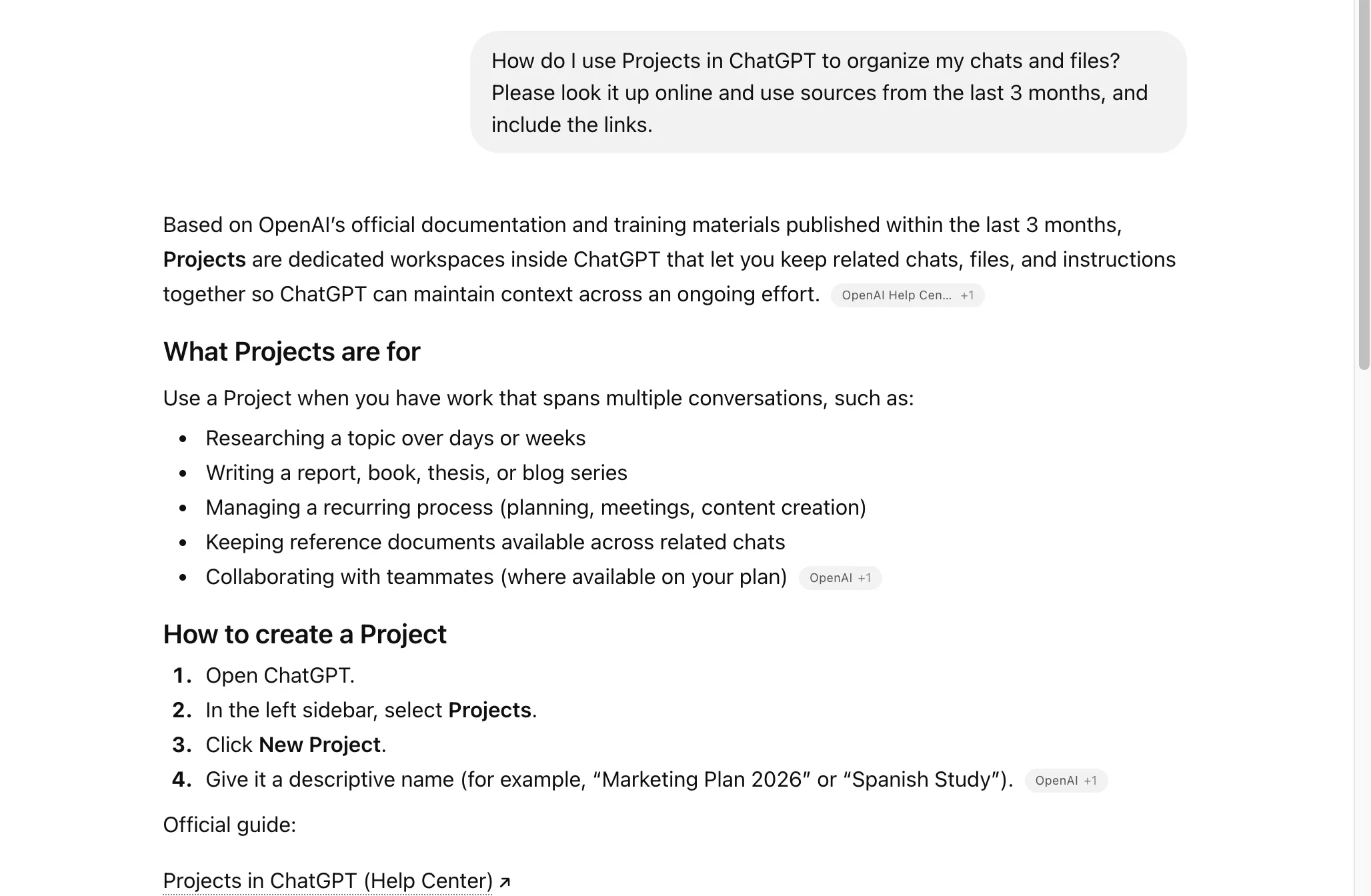
Notice what the answer leads with: “published within the last 3 months.” It heard the freshness instruction and honored it. The same plain-text request triggered a real search on free ChatGPT, on free Gemini, and on Claude as well, no button required on any of them. The grounding is why this matters. When the model is reading fresh search results instead of reciting old training, an answer about a feature that changed last month has something current to stand on. (That’s the same reason giving the AI sources cuts down on confident mistakes in general, which is the whole story behind why AI hallucinates.)
Confirm it actually searched
Telling it to look things up is half the habit. The other half is checking that it did, and that check takes about two seconds because the apps show their work.
When a model searches, it leaves visible tells, and they look a little different in each app:
- ChatGPT shows a brief “Searching the web” status while it works, then drops small clickable source chips inline in the answer and a list of links you can open.
- Gemini puts a Sources button at the bottom of the response (or inline), and tapping it opens a side panel of the links it used. Google’s own help is refreshingly direct about the flip side: “If you don’t have the Sources button below a response, Gemini Apps didn’t provide any links for that particular response.”
- Claude (here on the Max plan, running Opus) shows a live indicator that it’s searching, then lists citations with real source links on the finished answer.
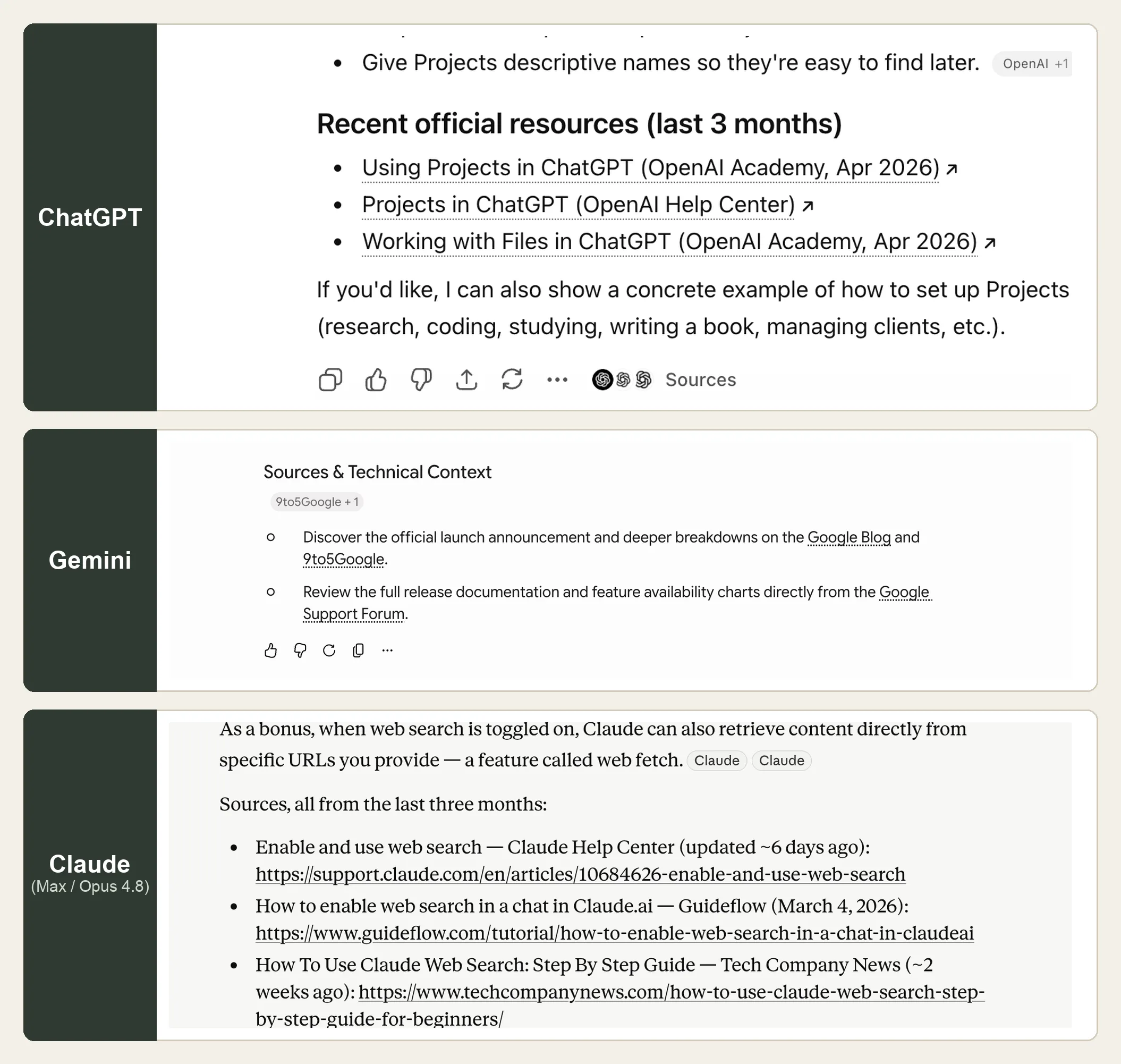
The rule underneath all three is the same: links present means it searched, links absent means it answered from memory. If you asked for current information and got back a confident wall of text with nothing to click, that’s your signal it ran on stale knowledge, and your signal to ask again with the look-it-up instruction.
One honest note while you’re here. A model that searched isn’t automatically right; it can lean on a weak page the way anyone can land on a bad result. So when the answer matters, give the links a quick glance instead of taking the summary on faith. That glance is the entire safety habit, and knowing which answers are worth the glance is a short skill on its own.
Show it when you can’t say it
Sometimes the problem is that you can’t put the problem into words. A screen has eleven buttons and none of them say what you expect. An error message reads like it was written for someone else. You don’t know the name of the thing, so you can’t describe the thing.
So don’t describe it. Show it. Take a screenshot, hand it to the AI, and ask “what is this and what do I do next?” The consumer apps all read images: in Claude you click the + button in the lower-left of the message box and choose “Add files or photos,” or you just paste a screenshot straight from your clipboard. ChatGPT and Gemini take a pasted screenshot the same way. You point at the confusion instead of trying to name it.
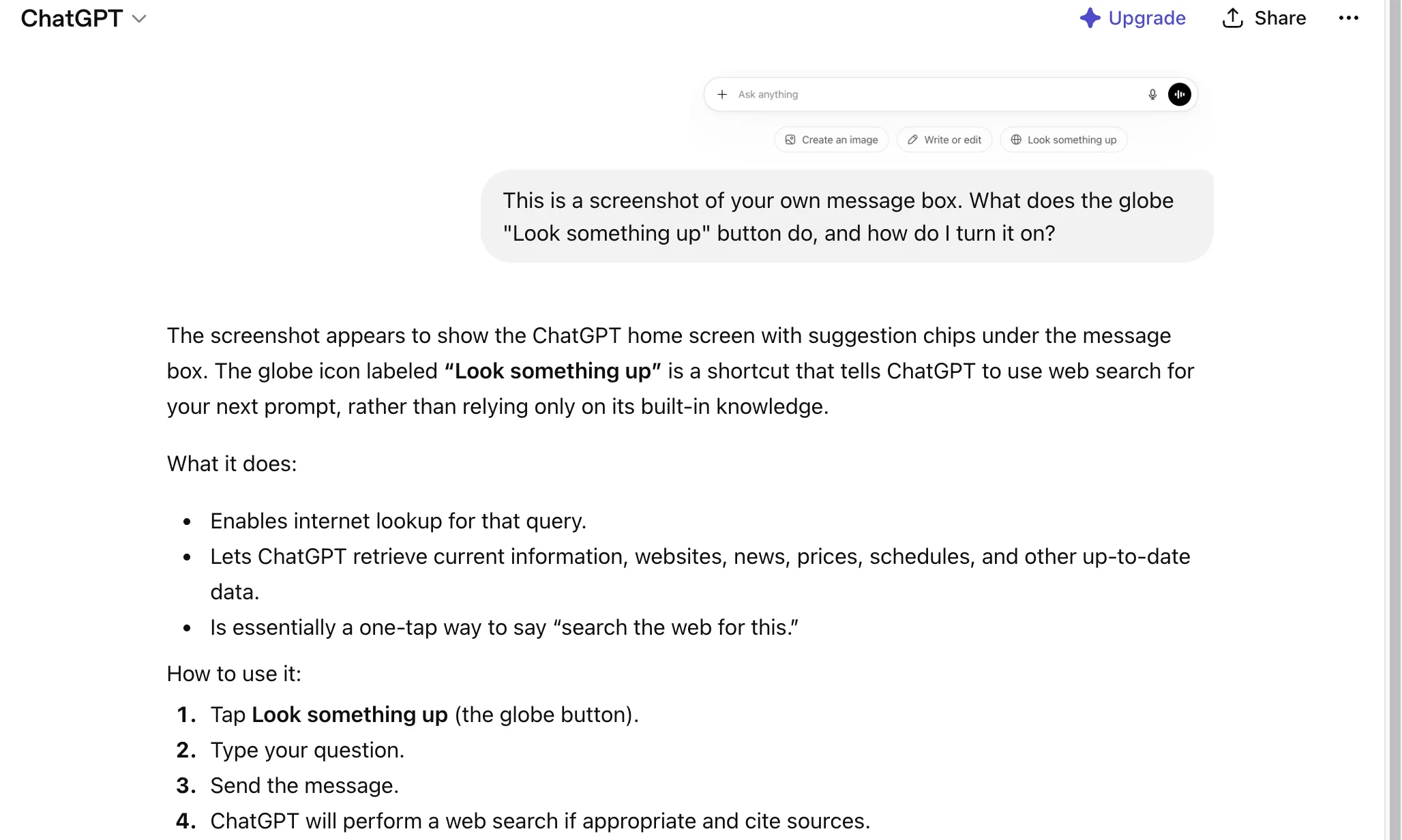
This pairs beautifully with asking the AI about itself. Stuck on the AI’s own screen? Screenshot the AI’s own screen and ask the AI about it. Capture the message box, point at the little icon you don’t recognize, and ask “how do I turn this on?”
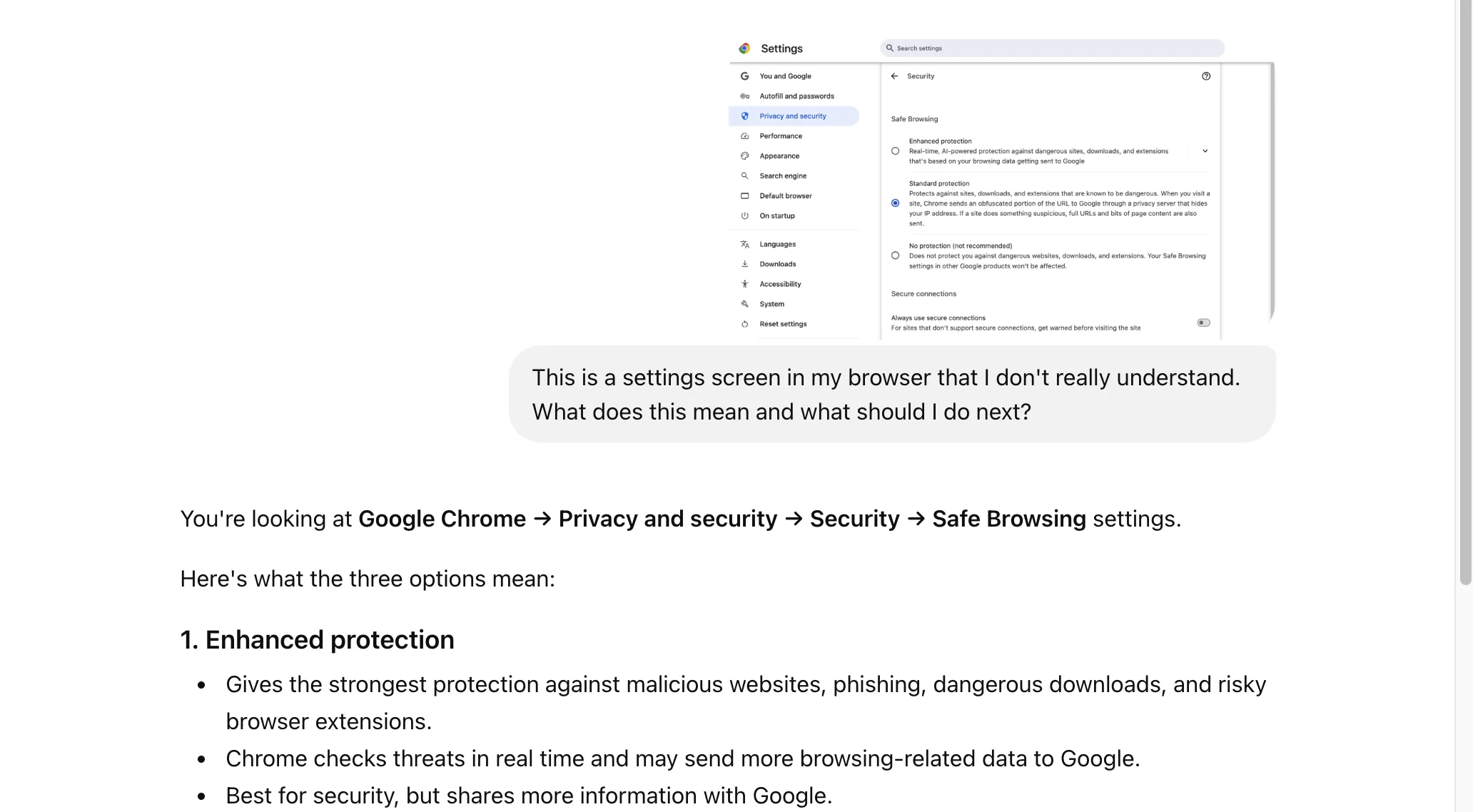
And showing it doesn’t stop at AI. It works on anything baffling on your computer. A settings page you can’t parse, a dialog box with a cryptic warning, a checkbox you’re afraid to tick: screenshot it, ask “what does this mean and should I change it?” The AI can read the screen you’re looking at, which means the next time some app throws an inscrutable wall of options at you, you have somewhere to turn that isn’t a forum post from 2023.
The reflex worth building
That’s the whole thing, and it really is just two things to try. When you’re stuck, ask it in plain words, or show it a screenshot, before your hand drifts back to the search bar. For anything about AI or anything recent, add “look it up online, recent sources,” then check for the links. When words fail you, let the picture do the talking.
The shift underneath all of this is treating the AI as something you keep talking to rather than something you query once and abandon. Ethan Mollick, who writes about working with these tools, puts it simply: “Working with AI is a dialogue, not an order.” You ask, it answers, you point at what’s still confusing, it adjusts. The reason this is worth building into a reflex is that the alternative, the leave-and-Google loop, was always the slower path. You just had the faster one open the whole time.
If you haven’t opened one of these yet, start with the first hour, where that + button at the edge of the box is the whole lesson. Everything here is just what you do once you’re in.